Everything you log in everbud is backed up to your account, and so are most of your settings, so moving phones is mostly signing in.
Move in four steps
- On your old phone (if you still have it), open everbud with the internet on, so your latest entries and settings are backed up.
- On your new phone, install everbud from Google Play, or from the App Store on iPhone.
- Sign in the same way as before: tap Continue with Google and choose the same Google account, or on iPhone tap Sign in with Apple if that's what you used.
- Wait while your records come back. With a long history this can take a few minutes, so keep everbud open and online.
Set up the new phone
Phone permissions don't move with your account, so everbud walks you through setup again:
- Tap Turn on reminders to allow notifications.
- On the alarms step, tap Open settings and allow alarms.
- Set your prayer area, then check Keep reminders on time in More → Settings → Notifications & reminders.
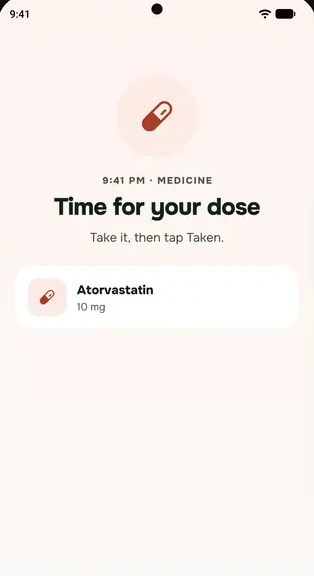
Your medicine reminders are set up again by themselves once your records are back.
What comes back
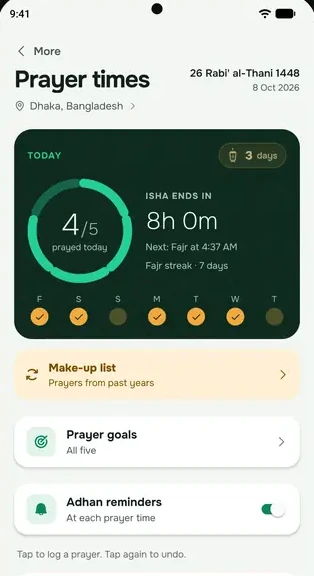
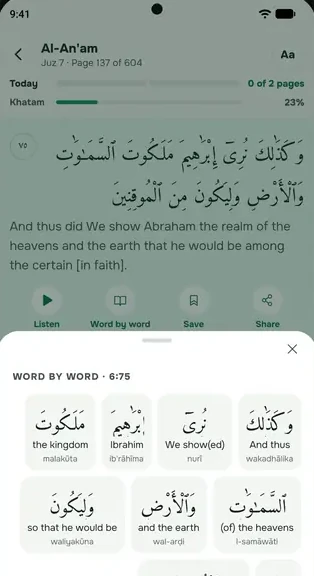
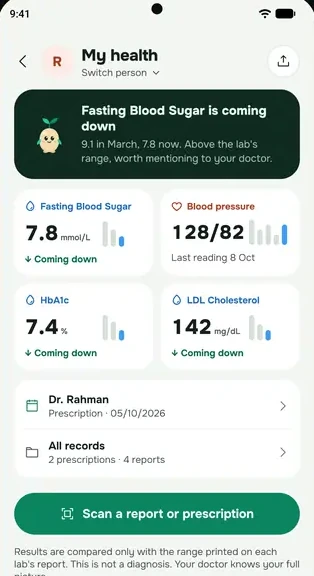
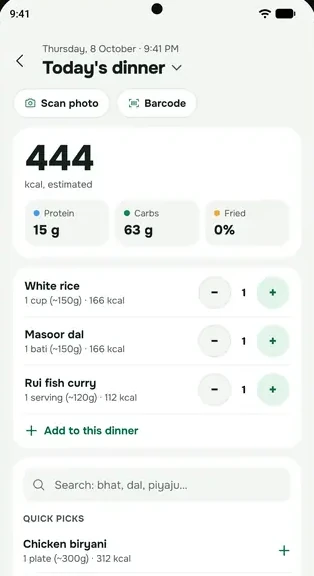
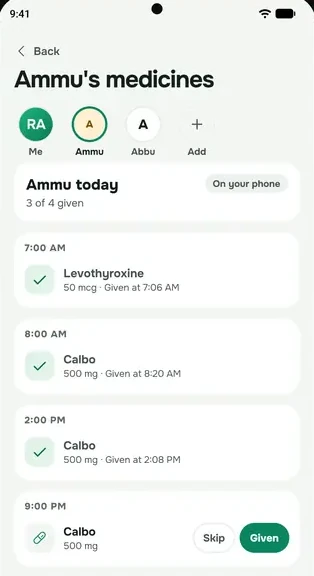
Medicines and doses, prayers, Qur'an progress, dhikr, fasts, your cycle, blood pressure, lab results, meals, sleep, workouts, tasks, journal entries, prescription details, and the people you look after. Your Plus or Family plan comes back with your account too. If it doesn't show, see Paid, but your plan isn't active.
Most of your settings and personal lists come back too, for example:
- Which reminders you want, the prayer screen and its sound, and Fajr on silent
- Calculation method, Hijri date setting and your prayer goal
- Qur'an reader settings, and the verses, duas, hadith and stories you saved
- App language, Home cards, health targets, and your cycle and Duo settings
- What Sprout sees
What you set again
These stay on the old phone:
- Prayer location (it never leaves your phone)
- Your agreement to use AI scans and Sprout (everbud asks again)
- Your chats with Sprout
- App colour and icon
- Photos: journal, progress and saved scan photos
Lost the old phone? Just sign in on the new one. Anything not backed up before the phone was lost can't be recovered.