Samsung puts apps to sleep to save battery, which can delay reminders. Turn on these settings once. Menu names can differ a little between Galaxy models.
1. Battery: Unrestricted
- Open your phone's Settings → Apps → everbud → Battery.
- Choose Unrestricted.
Background activity: allowedOpen everbud → More → Settings → Notifications & reminders → Keep reminders on time to check this.
2. Keep everbud out of sleeping apps
- Open Settings → Battery (on some models Battery and device care → Battery).
- Tap Background usage limits.
- Open Never sleeping apps (or Never auto sleeping apps), tap + and add everbud.
- Make sure everbud is not in Sleeping apps or Deep sleeping apps.
3. Alarms & reminders: Allowed
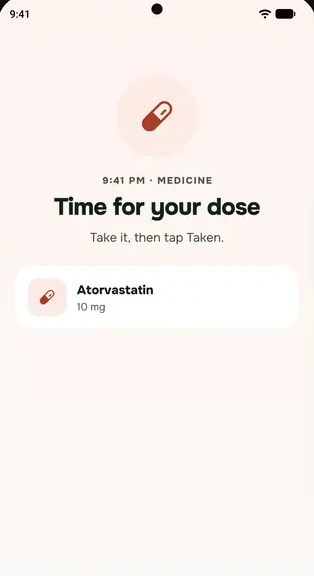
This lets prayer and medicine reminders arrive on the minute.
- Open Settings → Apps, tap the ⋮ menu, then Special access.
- Tap Alarms & reminders and turn on everbud.
Alarms & reminders: allowedOpen everbud → More → Settings → Notifications & reminders → Keep reminders on time to check this.
4. Full screen notifications (for the lock-screen prayer screen)
On Android 14 and newer, in the same Special access list, tap Full screen notifications and turn on everbud.
Full screen notifications: allowedOpen everbud → More → Settings → Notifications & reminders → Keep reminders on time to check this.
5. Notifications on
Open Settings → Notifications → App notifications and make sure everbud is on. In everbud, check More → Settings → Notifications & reminders too.
Notifications: allowedOpen everbud → More → Settings → Notifications & reminders to check this. If they are off, a banner at the top says so.
Then open everbud once so it can set up your reminders again. Still late? See Reminders late or missing? Start here.