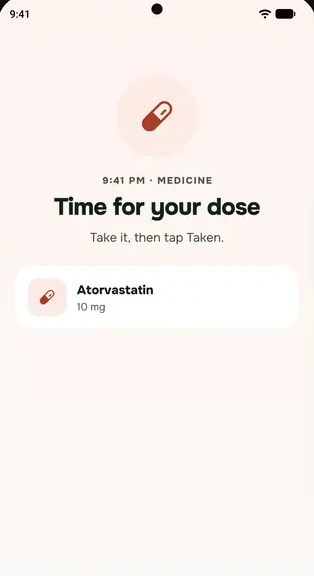
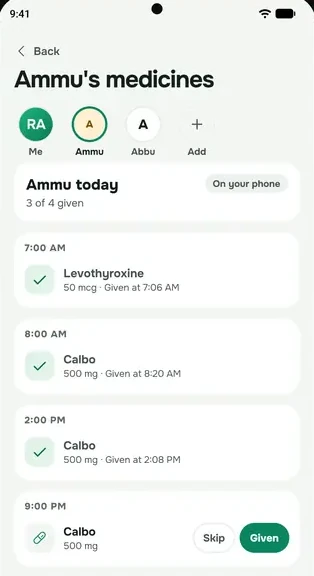
everbud reminds you at each dose time, and one tap tells it you've taken it.
Add a medicine
- Go to More → Health → Medications and tap Add medication.
- Type the Name and Dose (like 500 mg), and pick the Form: tablet, capsule, syrup and so on.
- Under Times of day, set each dose time. Tap a time to change it, or Add time for another.
- Under How long, choose Ongoing, a number of days, or Other. Reminders stop after the last dose, and everbud asks how you're feeling.
- Keep Reminders on and tap Save medication.
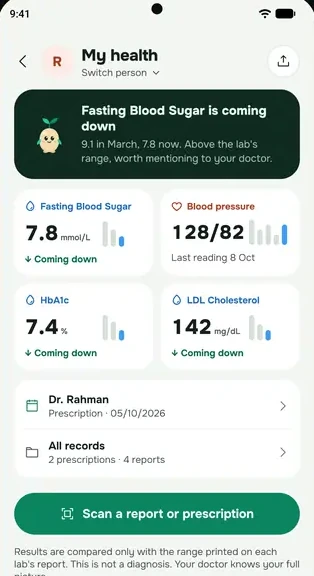
Have a prescription? Tap Scan a prescription instead and check each medicine before saving. See How scans work.
When a reminder comes
The notification shows the medicine and the time, with two buttons:
- Taken logs that dose.
- Snooze 30 min reminds you again in 30 minutes.
Tap the notification itself to open a full-screen reminder with the same two choices.
In the app, the Next dose card on the Medications screen has Take now and Snooze. Each dose counts on its own, so a medicine you take twice a day shows 1/2 taken until both are done.
Change or stop a reminder
Tap the medicine on the Medications screen. Change the times or switch Reminders off, then tap Save changes. To remove it, tap the bin icon.
If you miss a dose
everbud doesn't give medical advice. Ask your doctor or pharmacist what to do about a missed dose, and never change how you take a medicine because of the app.
Want family to know if a dose is missed? See What family can and can't see.
Reminders not coming?
Check these two first, then see Reminders late or missing? Start here.